
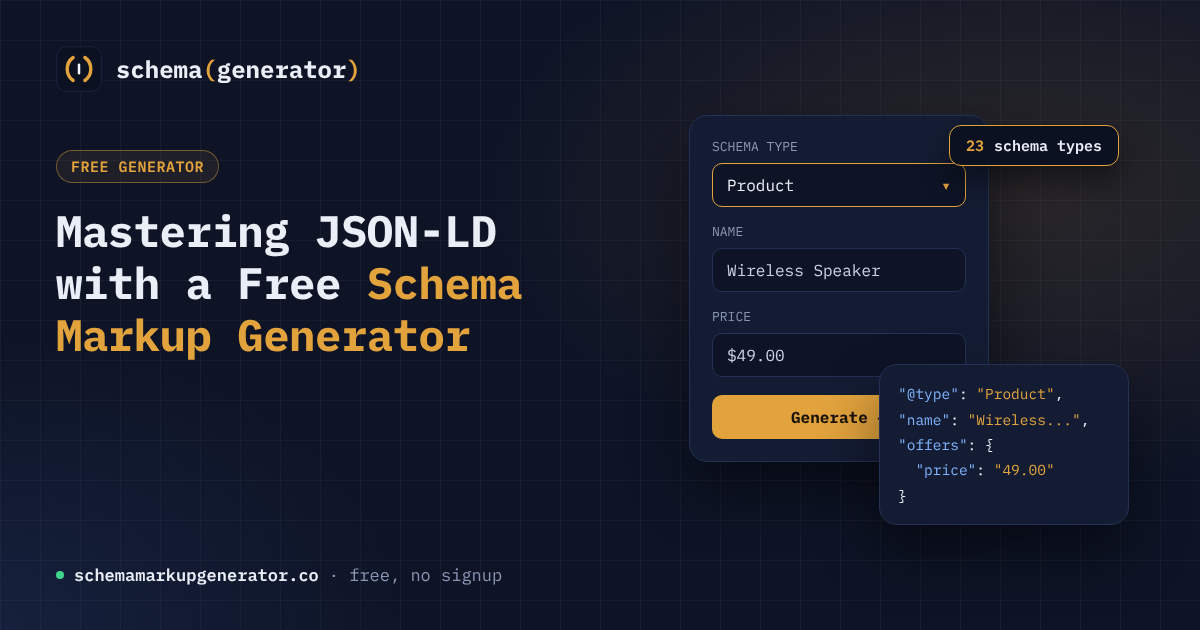
If you are looking for a quick way to add structured data to your site, try the schema markup generator. It is a free tool for building JSON-LD schema markup, with no signup needed. You enter your details in the browser and copy the code it generates. It covers 23 schema types, including Organization, Product, FAQ Page, Recipe, Event, Legal Service and Real Estate. It can also combine several schema types on one page and links you to the validators to check your code.
Why JSON-LD Is Important for Search Visibility
Search engines use structured data to understand the content of a page more precisely. JSON-LD is the format that most major engines recommend because it can be placed in the page header without interfering with the visible HTML. When you provide clear schema, your listings may appear as rich results, such as star ratings, event dates, or product prices. This extra visibility can increase click‑through rates and drive more qualified traffic.
Core Features of the Free Schema Markup Generator
- No registration required: you can start building markup instantly from any browser.
- Support for 23 schema types: the tool includes popular types like Organization, Product, FAQ Page, Recipe, Event, Legal Service and Real Estate.
- Multi‑type capability: you can add more than one schema to the same page, which is useful for complex pages that showcase a product and also answer common questions.
- Built‑in validation links: after the code is generated, the tool provides direct links to Google’s Rich Results Test and other validators, so you can confirm that the markup is error‑free.
- Copy‑ready output: the generated JSON‑LD is formatted for easy copying and pasting into your site’s “ block.
Step‑by‑Step Guide to Creating Markup
- Select the schema type: choose from the dropdown menu the type that matches your content.
- Fill in the fields: the form asks for the most relevant properties, such as name, URL, image, description, price, or event date.
- Preview the JSON‑LD: a live preview shows the exact code that will be generated.
- Copy the script: click the copy button or select the text manually.
- Paste into your page: insert the script tag into the ` or just before the closing ` tag.
- Validate: use the provided validator links to ensure the markup passes all checks.
Following these steps reduces the risk of syntax errors and saves time compared with hand‑coding JSON‑LD.
Common Schema Types and When to Use Them
Organization, ideal for businesses that want to display their logo, contact information, and social profiles in search results.
Product, adds price, availability, and review information for e‑commerce pages, helping shoppers see key details before clicking.
FAQ Page, turns a list of questions and answers into expandable rich results, improving user experience on support pages.
Recipe, includes cooking time, ingredients, and nutrition facts, which can appear as a carousel in search.
Event, displays date, location, and ticket information for concerts, webinars, or conferences.
Legal Service, helps law firms highlight practice areas, office locations, and attorney profiles.
Real Estate, showcases property listings with price, address, and image galleries, making listings stand out in search.
Choosing the right type ensures that search engines can match your content to the appropriate rich result format.
Testing and Validating Your Markup
After pasting the JSON‑LD into your site, open the URL of the page in a new tab and run it through the Google Rich Results Test. Look for warnings such as missing required properties or mismatched data types. If the validator reports errors, return to the schema markup generator, adjust the fields, and regenerate the code. Re‑testing until the page is marked as “Valid” guarantees that the markup will be recognized by search engines.
Tips for Combining Multiple Schemas
- Group related data: if a page sells a product and also answers FAQs, include both Product and FAQ schemas in the same script block.
- Avoid duplicate properties: ensure that each schema type has its own distinct @type value and that shared properties like name or url are consistent across schemas.
- Keep the script concise: unnecessary properties increase the size of the JSON‑LD and may cause parsing delays.
- Test after every addition: each new schema can introduce conflicts, so validate after you add each type.
Best Practices for Ongoing Maintenance
Regularly review your markup as your content evolves. If you add new products, events, or services, update the corresponding schema fields. Keep an eye on search engine guidelines, as they occasionally deprecate properties or introduce new recommended types. Using the free schema markup generator as a central hub for creating and updating markup ensures that you always have the latest syntax without needing to write code from scratch.
By integrating clean JSON‑LD with the help of a reliable schema markup generator, you give search engines the clarity they need to present your pages as attractive rich results. The result is more visibility, higher click‑through rates, and a better experience for users who find your content through search.